Enter & pay bills
Who it’s for: Owners, admins and bookkeepers enter bills; owners and admins pay them Where: Bills → Enter bill; Bills → Pay bills; Bill payments (second row of the top bar) Before you start: The vendor is in Customers & vendors.
A bill is a vendor’s invoice to you — the supply house, a subcontractor, the fleet shop. Posting it records what you owe. Paying it records the money going out.
-
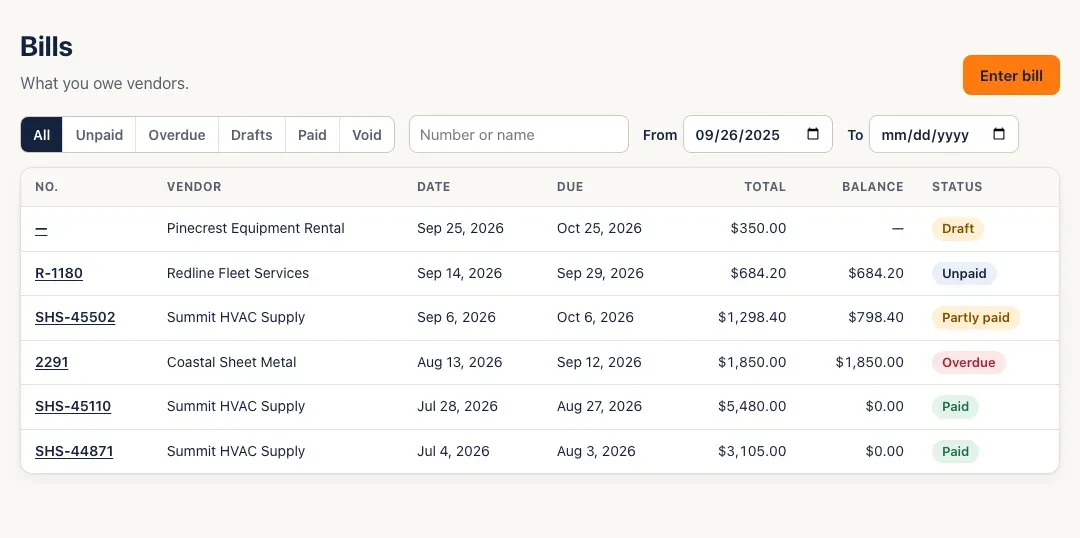
Open Bills. The filters work like the invoice list: All, Unpaid, Overdue, Drafts, Paid and Void, plus search and dates.
-
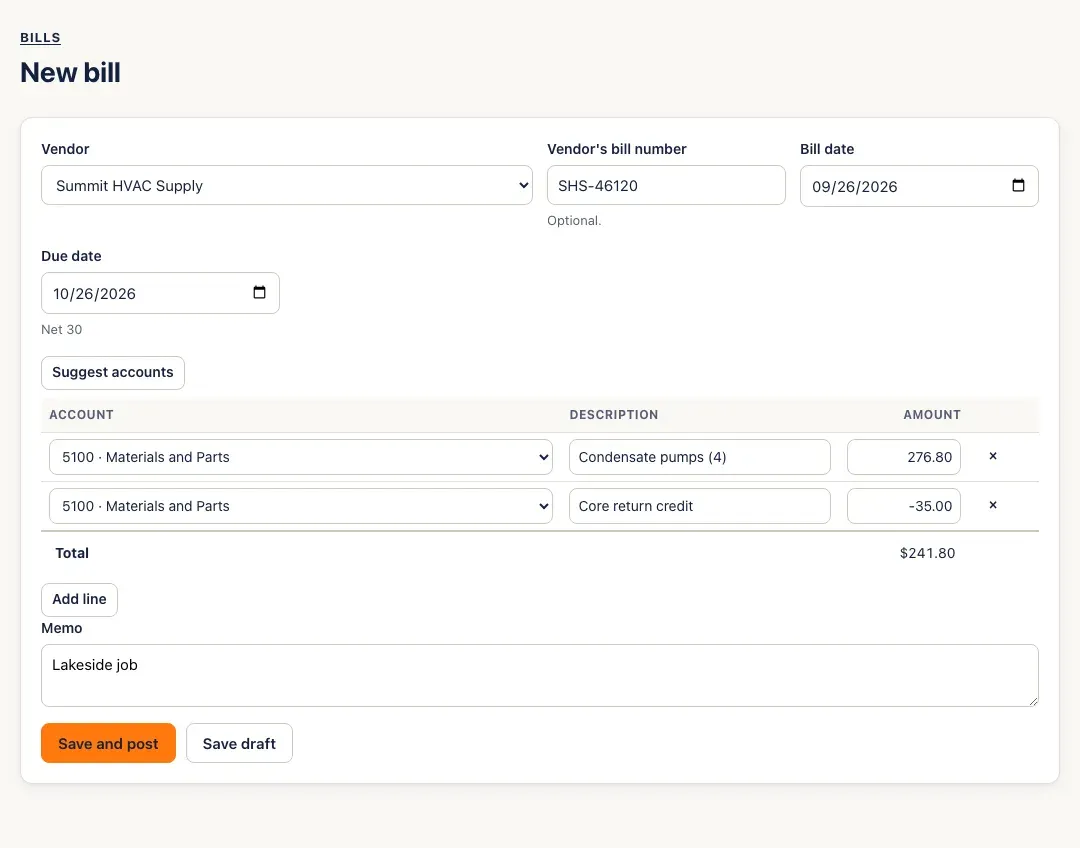
Click Enter bill. Choose the Vendor, add the Vendor’s bill number (optional) and the Bill date. The Due date follows the vendor’s terms until you change it.
-
Add a line for each thing the bill is for: Account (materials, subcontractors, vehicle repairs…), Description and Amount. Add line adds another. A negative amount is a credit on the same bill — a core return, a refund or a discount. Suggest accounts can fill in the accounts for you — see Use category suggestions.
-
Click Save and post, or Save draft to finish later (then Post bill or Delete draft). To change a posted bill, edit it and click Save changes — its journal entry is replaced. To cancel a posted bill with no payments, click Void and confirm.
-
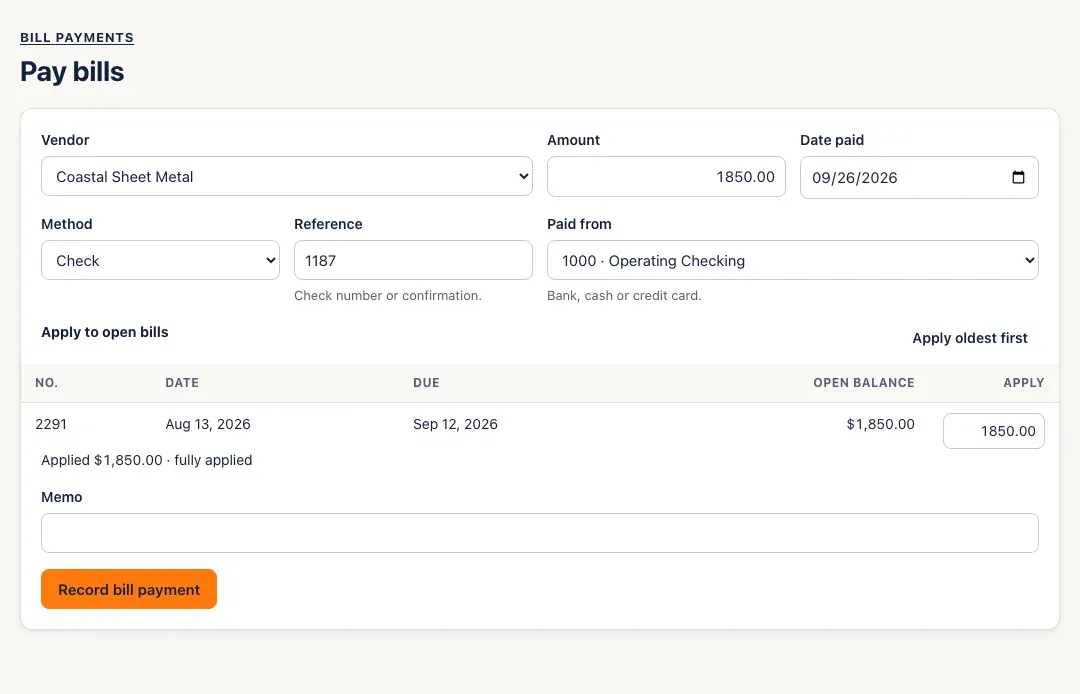
To pay, open the bill and click Pay bill, or click Pay bills on the Bills page and choose the vendor. Fill in the Amount, Date paid, Method, Reference (check number or confirmation) and Paid from — a bank, cash or credit card account. Apply the amount to the vendor’s open bills (or click Apply oldest first), then click Record bill payment.
-
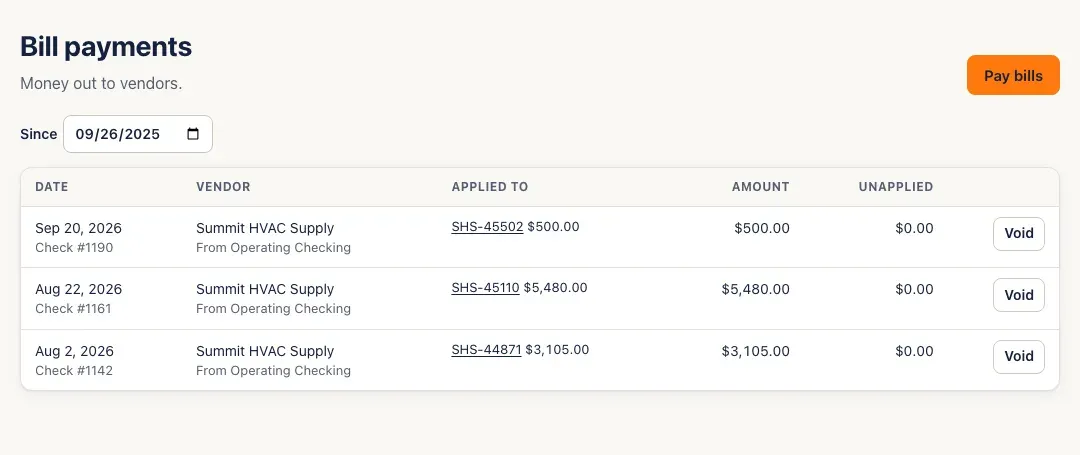
Bill payments lists what you’ve paid. Money paid ahead of a bill shows under Unapplied — click Apply credit to put it against the vendor’s open bills later.
You’ll know it worked when…
Section titled “You’ll know it worked when…”The bill’s badge changes from Unpaid to Partly paid or Paid, and it drops off the Unpaid filter once paid in full. The A/P aging and You owe vendors on Books go down.
Notes & limits
Section titled “Notes & limits”- Bookkeepers can enter, post and change bills but not pay them — Pay bills and Pay bill only show for owners and admins.
- Void is greyed out while payments are applied to a bill; void the payment first, from Bill payments.
- A payment that isn’t fully applied is kept as a vendor prepayment.
- Voiding a bill payment reverses it on its own date, so one in a closed month can’t be voided until the month is reopened. Voiding a bill from a closed month posts the reversal on the first open day.
- Unpaid and Overdue show everything still owed, however old; the other filters show the last 12 months — change From and To to see older bills.