Read your reports
Who it’s for: Everyone — every role can read reports Where: Reports (top bar) Before you start: Nothing. Reports fill in as you post invoices, bills, payments, expenses and journal entries.
Reports are read straight from your journal, so they’re always current — there’s nothing to refresh.
-
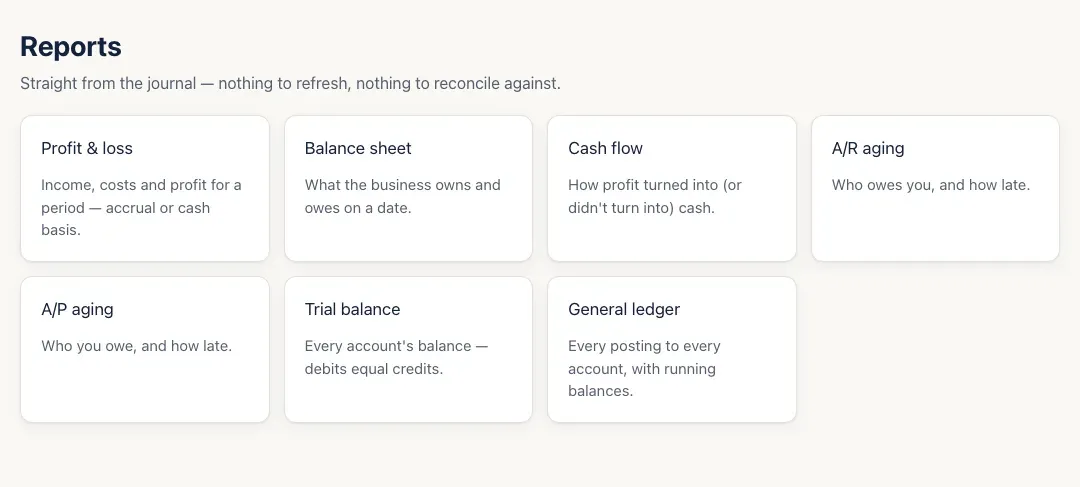
Open Reports and pick one:
- Profit & loss — income, costs and profit for a period, on the accrual or cash basis.
- Balance sheet — what the business owns and owes on a date.
- Cash flow — how profit turned (or didn’t turn) into cash.
- A/R aging and A/P aging — who owes you, and who you owe, and how late.
- Trial balance — every account’s balance; debits equal credits.
- General ledger — every posting to every account, with running balances.
-
Set what the report covers:
- Reports over a period — profit & loss, cash flow, general ledger — have Choose a period… (This month, Last month, This quarter, Last quarter, Year to date, Last year) and From / To dates.
- Reports on a single day — balance sheet, trial balance and the agings — have an As of date.
-
Click an account name in any report to open its register: the general ledger for that account and those dates.
-
To share a report, copy the address from your browser. Everything you chose is in the link, so a teammate who opens it sees the same report.
You’ll know it worked when…
Section titled “You’ll know it worked when…”The report shows the dates you chose under its title, and the totals match what you’d expect — for example, the balance sheet’s total assets equal total liabilities and equity.
Notes & limits
Section titled “Notes & limits”- Profit & loss and cash flow open on Year to date; the general ledger opens on this month; the others open as of today.
- Year to date and Last year follow your company’s fiscal year. If it doesn’t start in January, the menu says Fiscal year to date and Last fiscal year.
- There’s no export or print button in Reports yet.