Record an expense
Who it’s for: Owners, admins and bookkeepers Where: Expenses → Record expense (or Books → Quick actions → Record expense) Before you start: Nothing. Have a photo of the receipt? Use the receipts inbox instead — it fills in the form for you, and the receipt stays on file (on its Recorded tab) with a link to the expense.
An expense is spending paid on the spot, with no bill to pay later. It’s posted to your books as soon as you save it.
-
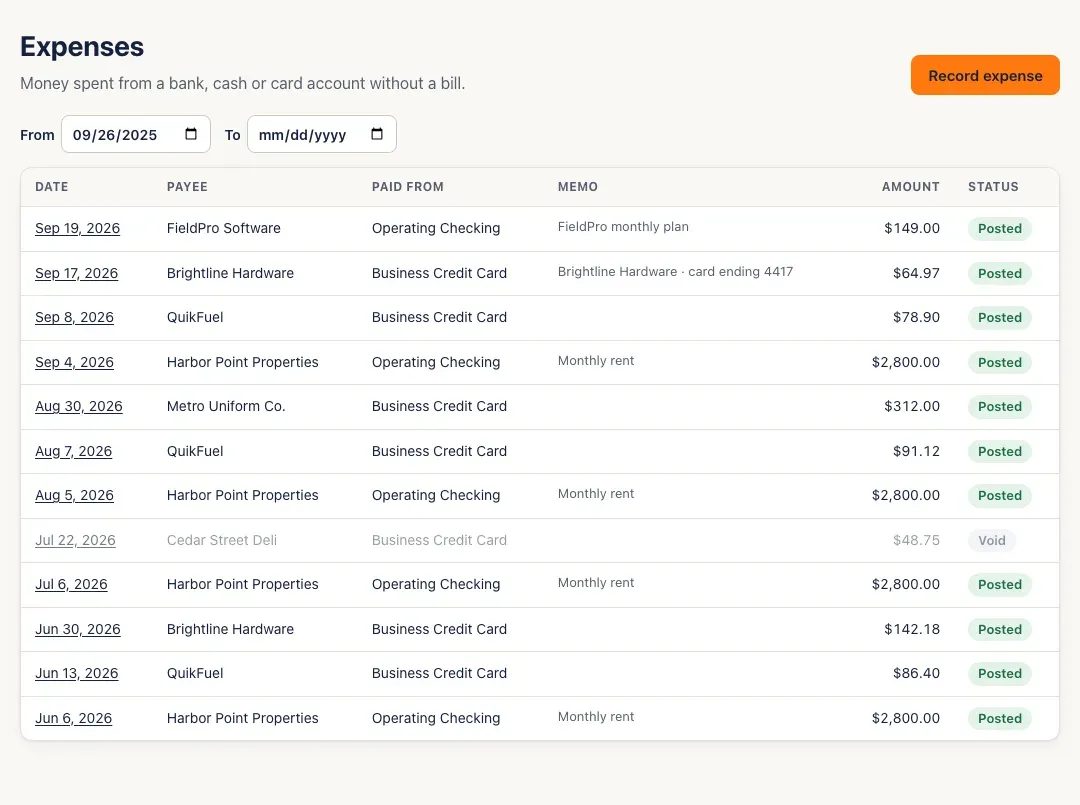
Open Expenses. It lists money spent from a bank, cash or card account without a bill, newest first.
-
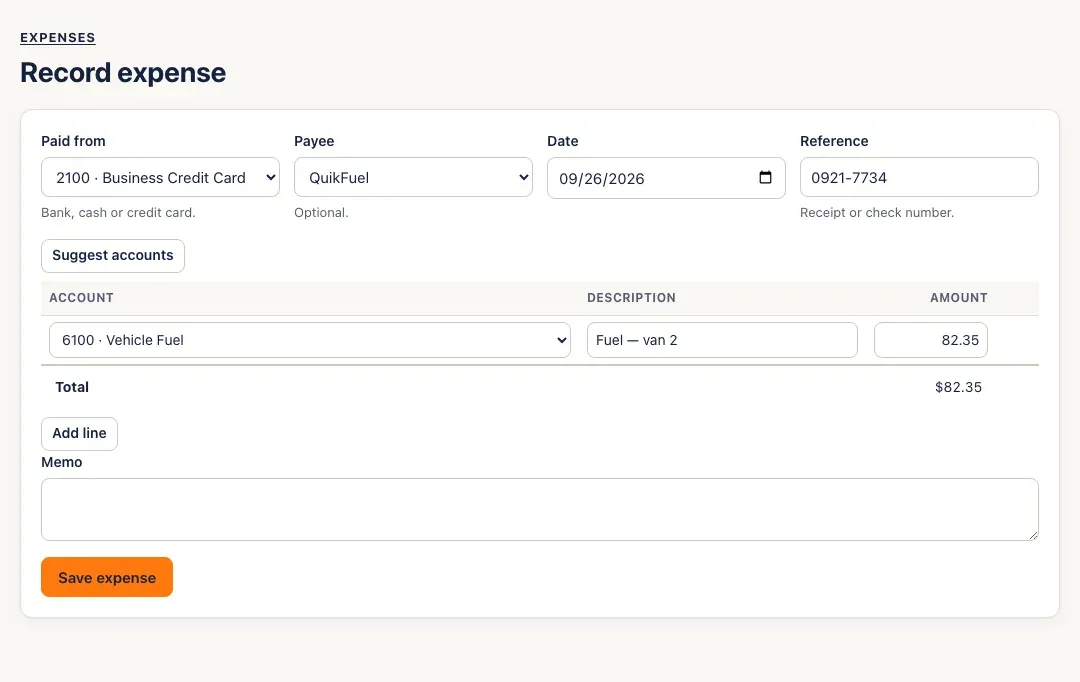
Click Record expense. Choose Paid from (a bank, cash or credit card account), the Payee (optional), the Date and a Reference (the receipt or check number).
-
Add a line for what the money was for: Account, Description and Amount. Split one purchase across several accounts with Add line. A negative amount is a refund or credit on the same expense. Suggest accounts can fill in accounts — see Use category suggestions.
-
Add a Memo if you like and click Save expense. SturdyBooks opens the saved expense.
-
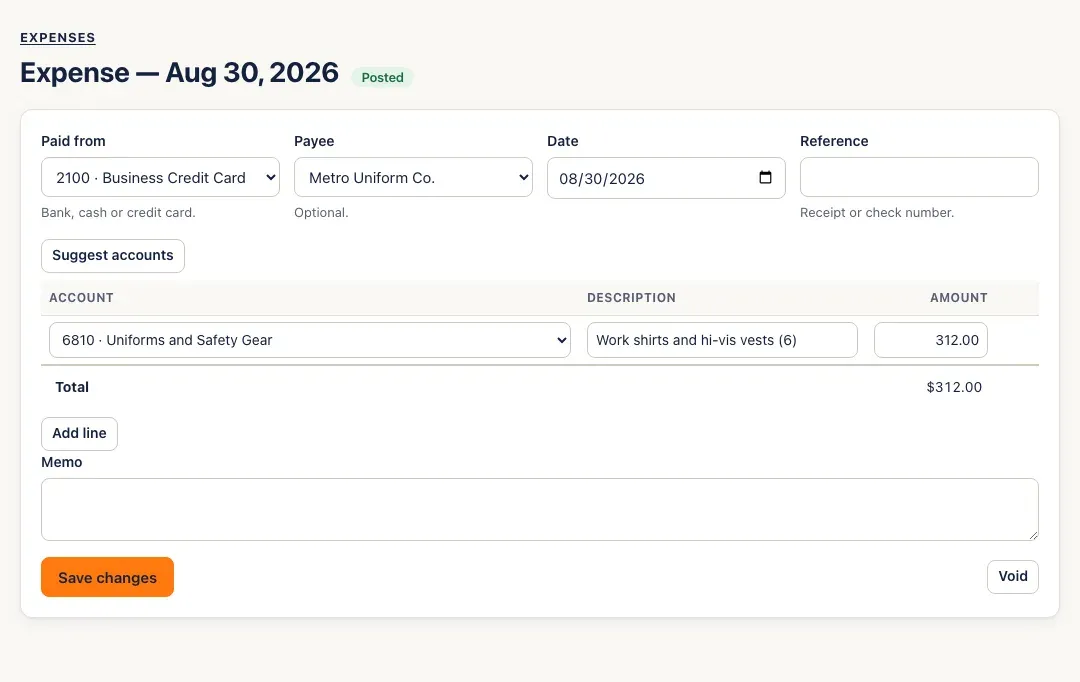
To change it later, open it from the list, edit and click Save changes — it’s reposted. To cancel it, click Void and confirm (Void this expense? Its entry is reversed.).
You’ll know it worked when…
Section titled “You’ll know it worked when…”The expense is in the list marked Posted, and its amount shows in the profit & loss under its account.
Notes & limits
Section titled “Notes & limits”- Expenses post as soon as they’re saved — there are no expense drafts.
- The expense counts in the profit & loss on its date on both the accrual and cash basis.
- Voiding an expense from a closed month posts the reversal on the first open day; changing its amounts or date needs the month reopened. See Close the books.
- The list shows the last 12 months; change From and To to see older expenses.