Customers & vendors
Who it’s for: Owners, admins and bookkeepers (viewers can look but not change) Where: Customers & vendors (second row of the top bar) Before you start: Nothing.
Customers and vendors live in one list. A subcontractor who also buys service from you is one contact with both roles.
-
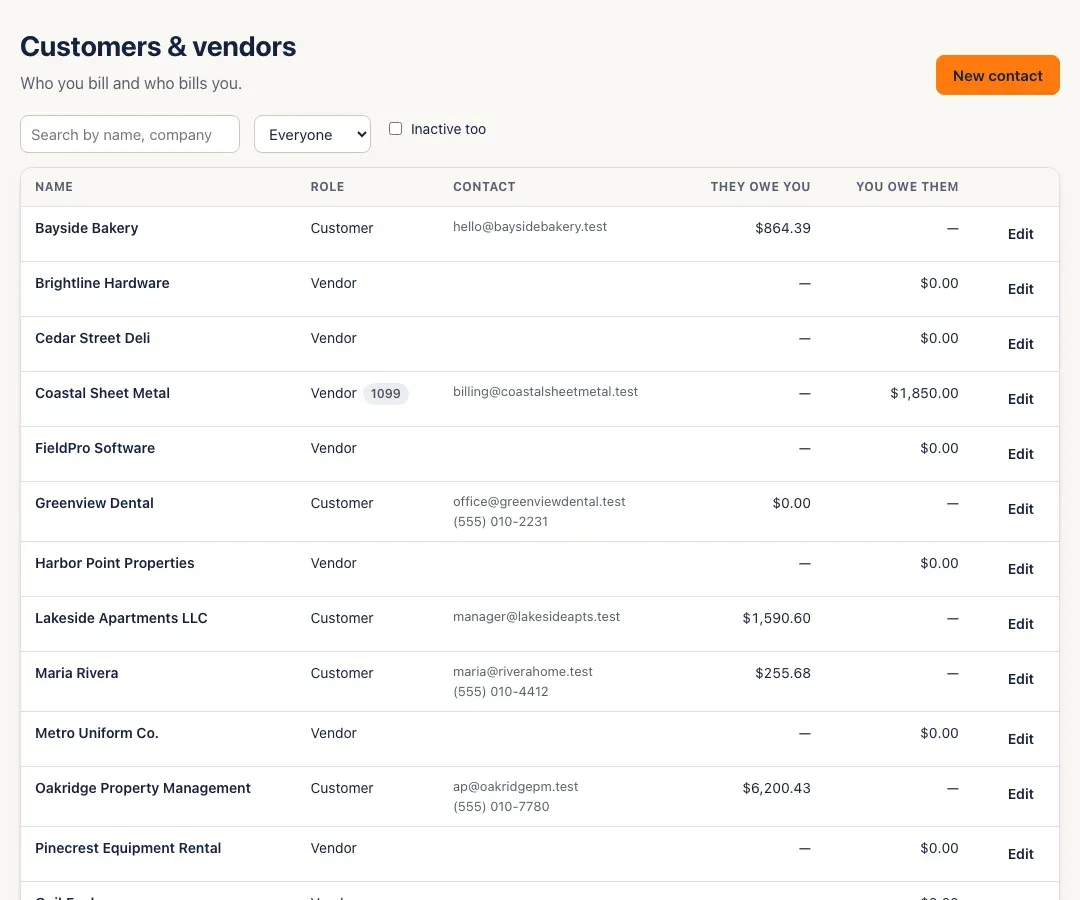
Open Customers & vendors. Each contact shows its role and two balances: They owe you (for customers) and You owe them (for vendors). Click a balance to see that contact’s invoices or bills. Search by name, company or email, and choose Everyone, Customers or Vendors.
-
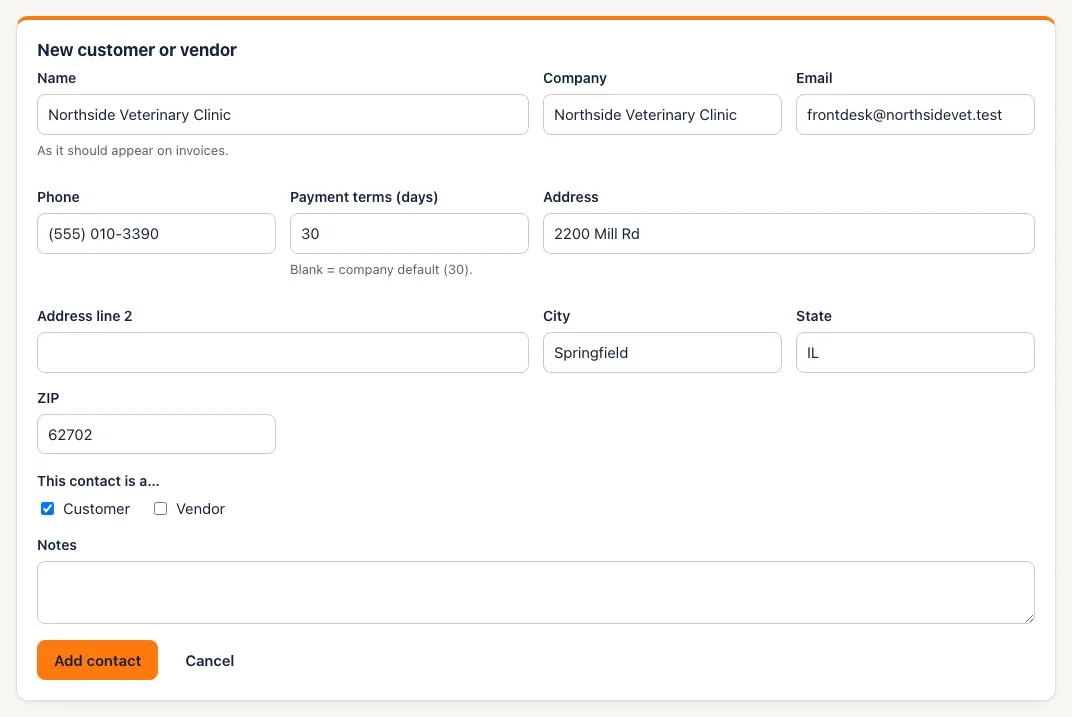
Click New contact and fill in the form:
- Name — as it should appear on invoices.
- Company, Email, Phone and the address.
- Payment terms (days) — leave it blank for the company default of 30 days.
-
Under This contact is a…, tick Customer, Vendor or both. For a vendor you’ll send a 1099, also tick Gets a 1099.
-
Click Add contact.
-
To change a contact later, click Edit on its row, make your changes and click Save changes. To retire a contact, untick Active. Tick Inactive too above the list to see retired contacts.
You’ll know it worked when…
Section titled “You’ll know it worked when…”The contact appears in the list, and in the customer picker on new invoices (customers) or the vendor picker on new bills (vendors).
Notes & limits
Section titled “Notes & limits”- Payment terms set the due date on new invoices and bills — the form shows Net 30, Net 45 and so on.
- A customer with open invoices or money owing can’t be made inactive, or un-ticked as a customer, until those are settled or voided — SturdyBooks says (name) has open invoices or a receivable balance — settle or void them first. The same goes for vendors and bills.
- Contacts are never deleted; make them inactive instead.
- Invoices choose from customers, bills from vendors. An expense’s payee can be any contact; a receipt’s payee is chosen from vendors.
- A 1099 tag shows next to vendors marked Gets a 1099.