Create, post, edit & void an invoice
Who it’s for: Owners, admins and bookkeepers Where: Invoices → New invoice (or Books → Quick actions → New invoice) Before you start: The customer is in Customers & vendors.
An invoice records what a customer owes you. A draft is just a document; posting it puts it in your books — it shows in your reports and on the customer’s balance.
-
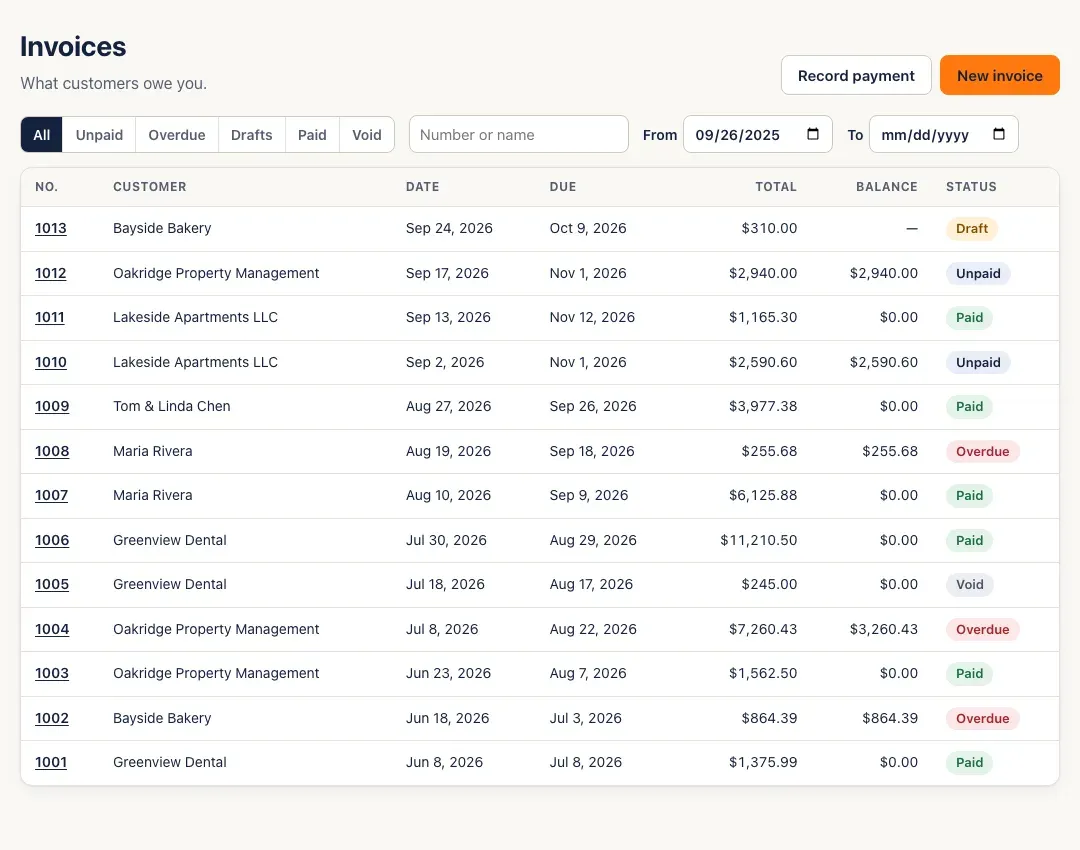
Open Invoices. Filter by All, Unpaid, Overdue, Drafts, Paid or Void, search by number or name, or change the dates.
-
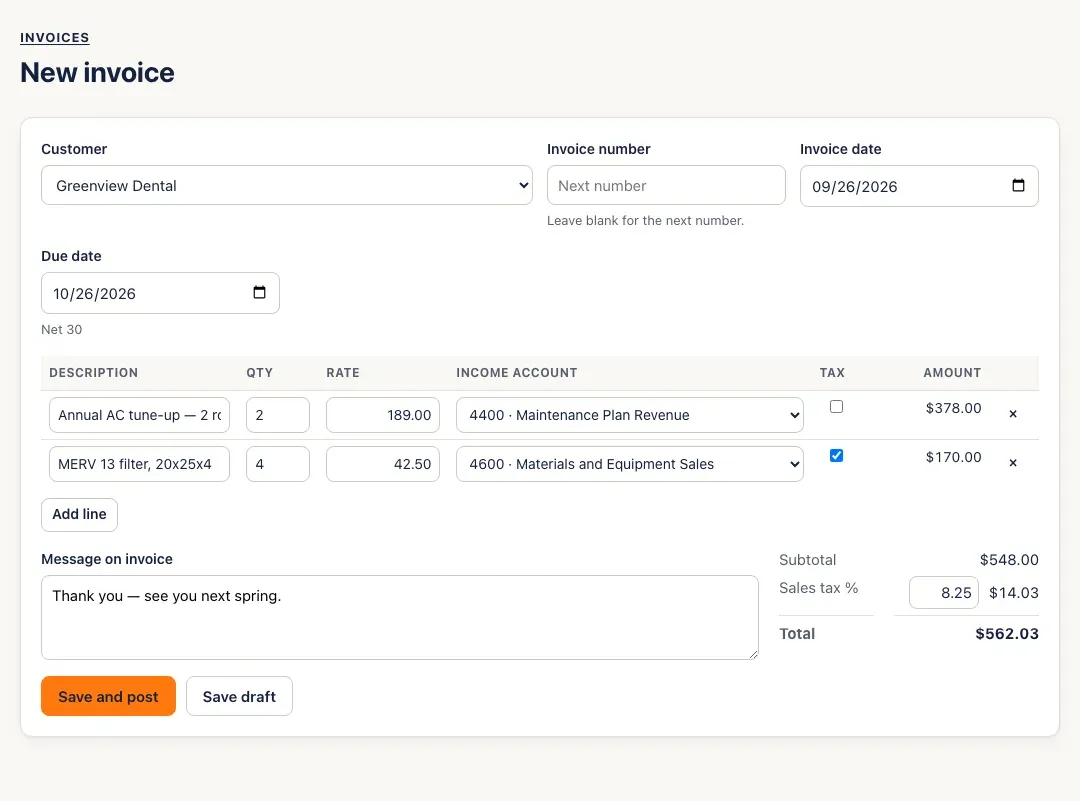
Click New invoice and choose the Customer.
- Invoice number — leave it blank and SturdyBooks uses the next number.
- Invoice date starts as today. Due date follows the customer’s payment terms (it shows Net 30, for example) until you change it.
-
Add the line items: Description, Qty, Rate and Income account, and tick Tax on the lines sales tax applies to. Click Add line for another line, or × to remove one. Enter the Sales tax % (for example 8.25) beside the totals, and a Message on invoice if you like. The amounts and totals update as you type.
-
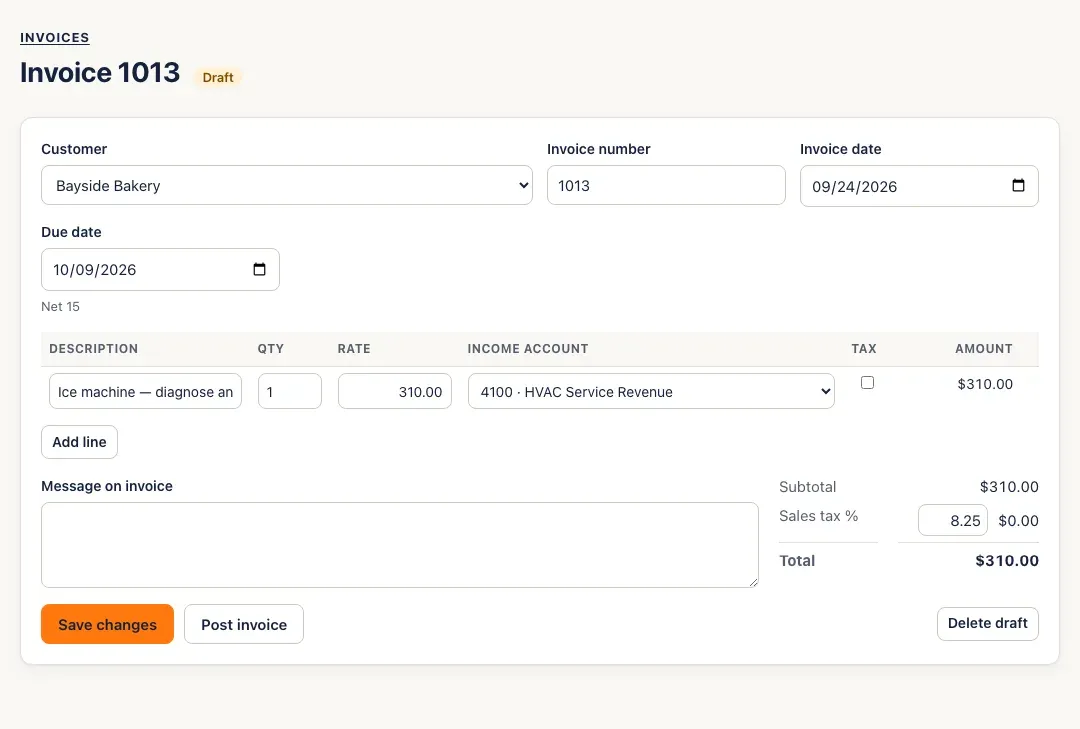
Click Save and post to put the invoice in your books now, or Save draft to finish it later. A draft doesn’t count anywhere until you open it and click Post invoice — or Delete draft to throw it away.
-
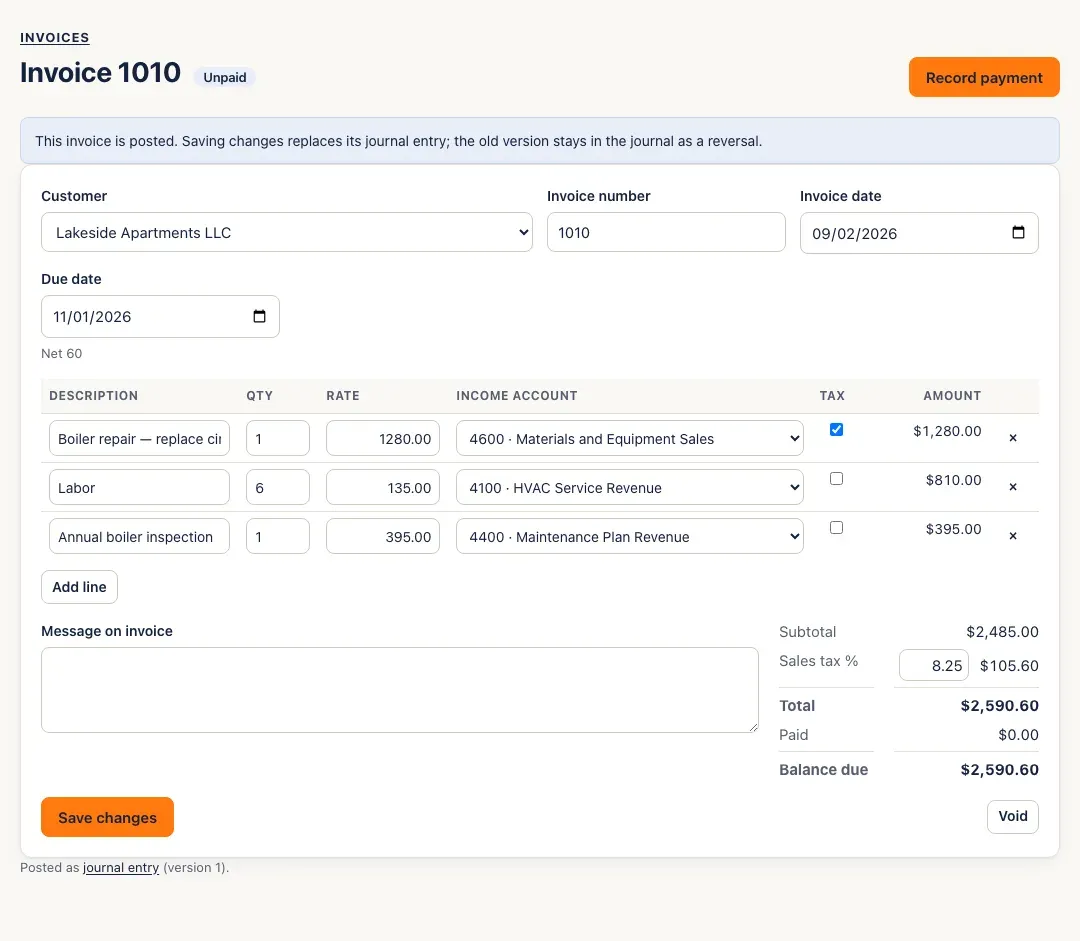
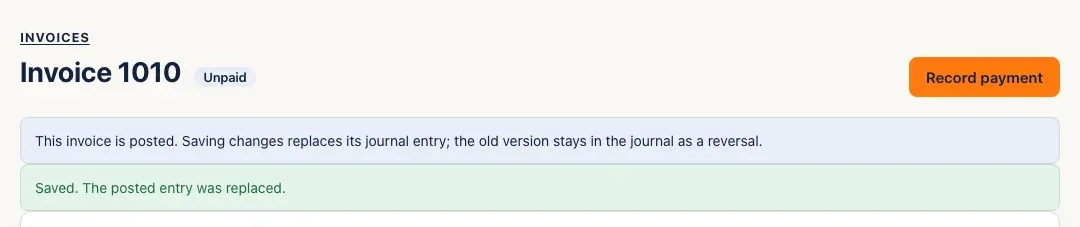
To change a posted invoice, open it, make the change and click Save changes. The note at the top explains what happens: its journal entry is replaced, and the old version stays in the journal as a reversal. From a posted invoice with a balance you can also click Record payment (see Record a payment).
-
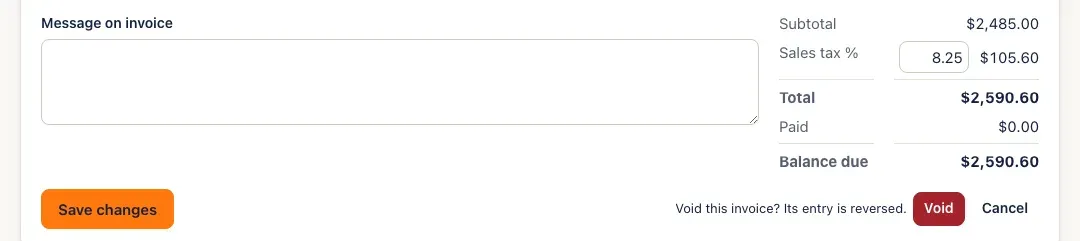
To cancel a posted invoice, click Void, then Void again to confirm — Void this invoice? Its entry is reversed.
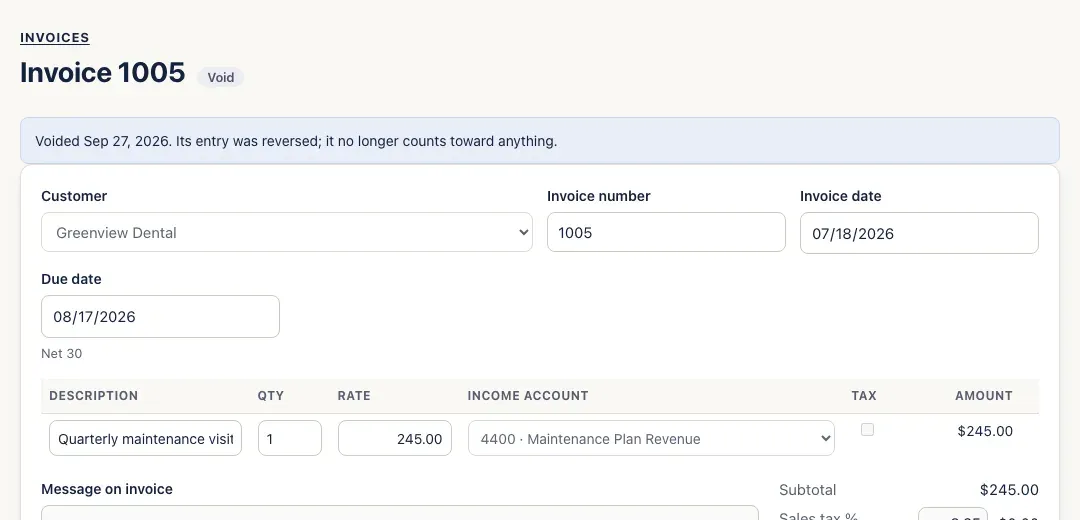
The invoice stays on file, marked Void, and no longer counts toward anything.
You’ll know it worked when…
Section titled “You’ll know it worked when…”The invoice shows a status badge: Draft, Unpaid, Partly paid, Paid, Overdue (unpaid or partly paid past its due date) or Void. A posted invoice ends with Posted as journal entry (version 1) — the link opens its entry, and the version goes up each time you change it.
Notes & limits
Section titled “Notes & limits”- Void is greyed out while payments are applied to the invoice. Void those payments first, from Payments received.
- A change can’t bring the total below what’s already been paid, and the customer can’t change while payments are applied.
- Invoice numbers must be unique — SturdyBooks refuses a number that’s taken (invoice 1005 already exists).
- For a discount or credit line, use a negative Rate.
- A posted invoice dated in a closed month can’t be changed until the month is reopened; voiding it posts the reversal on the first open day. See Close the books.
- SturdyBooks doesn’t email or print invoices yet — it records them in your books.
- If your connection drops while you save a new invoice, the form locks and offers Retry, which sends exactly the same invoice again — it can’t be recorded twice.