The receipts inbox (snap → read → record)
Who it’s for: Owners, admins and bookkeepers (viewers can look) Where: Receipts (top bar) Before you start: A photo or scan of the receipt — a JPEG, PNG or WebP image, up to 10 MB. On a phone, open SturdyBooks in your browser and use your camera.
Snap or upload receipts as you go; record each one as an expense when you’re at your desk. If AI reading is on for your company, SturdyBooks reads the store, date and total for you. Nothing is ever posted on its own — a person always records the expense.
-
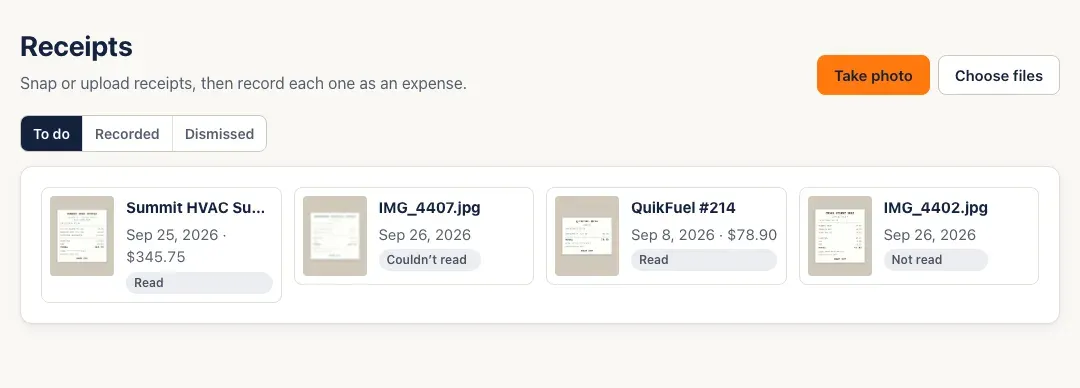
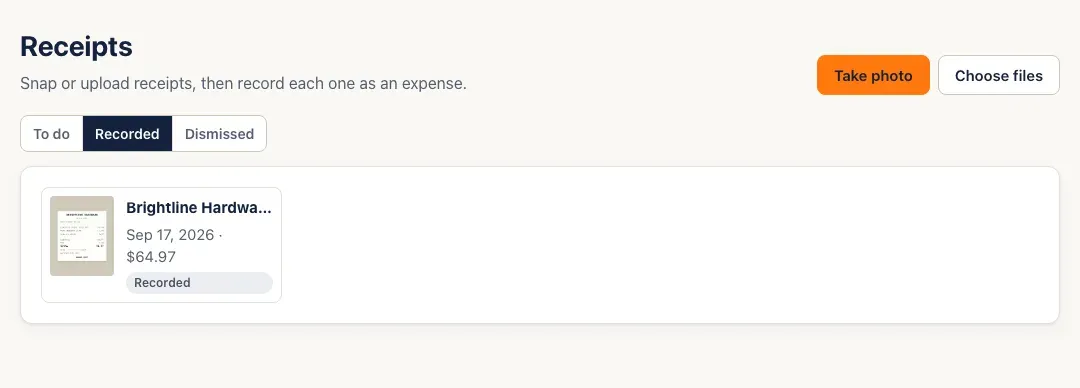
Open Receipts. To do holds receipts waiting to be recorded. Each tile shows the store (or the file name until it’s read), the date, the total once it’s read, and a status: Not read, Reading…, Read or Couldn’t read.
-
Click Take photo to use your phone’s camera, or Choose files to pick one or more photos. Each file gets a line saying how it went — Added. with an Open it link, or why it wasn’t added.
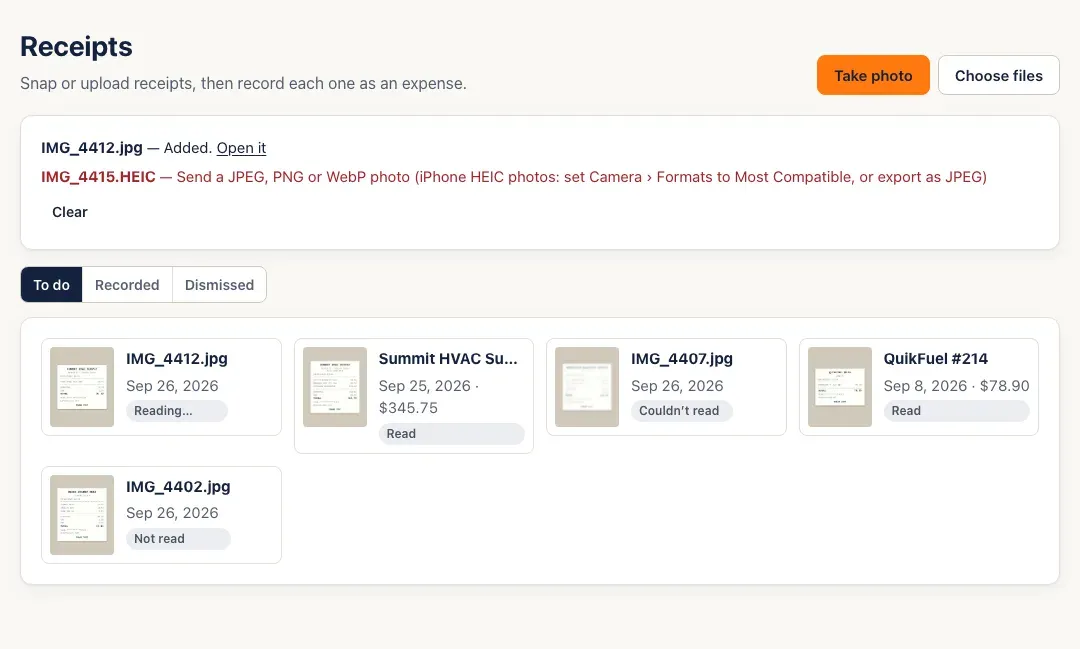
- iPhone photos in HEIC format are turned away with advice: on the iPhone, set Settings › Camera › Formats to Most Compatible, or export the photo as a JPEG.
- Uploading the same photo twice doesn’t make a copy: the line says Already here — the same photo as an existing receipt and links to it.
-
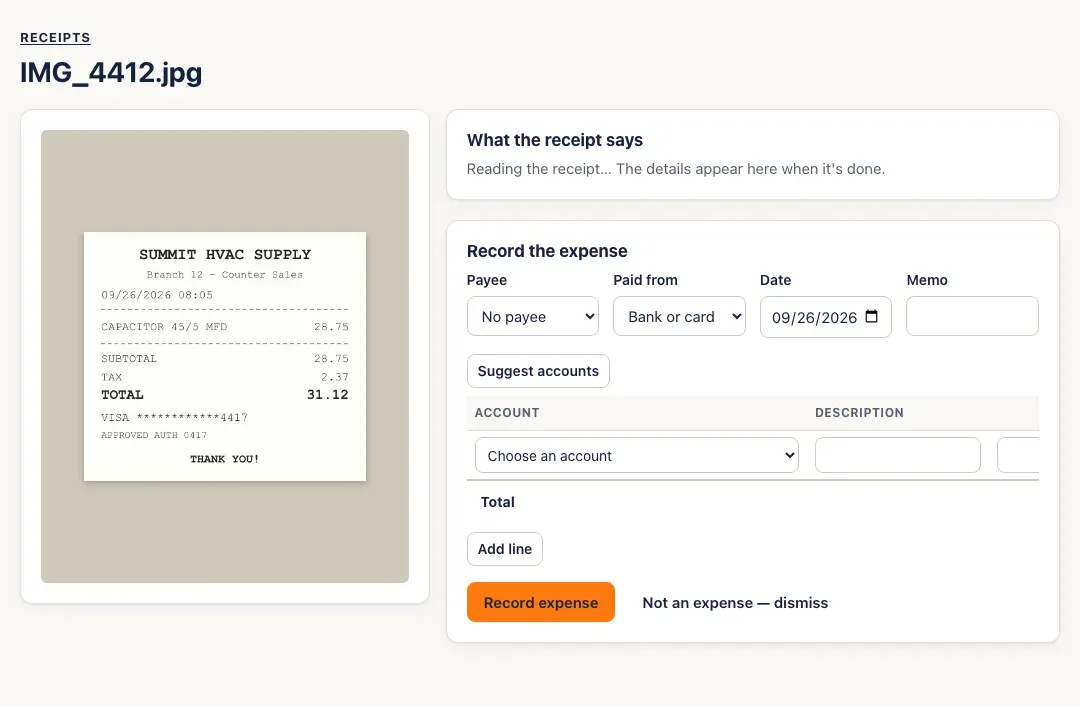
If AI reading is on, a new receipt shows Reading… while it’s read in the background. You don’t have to wait — carry on, and the details appear when it’s done.
-
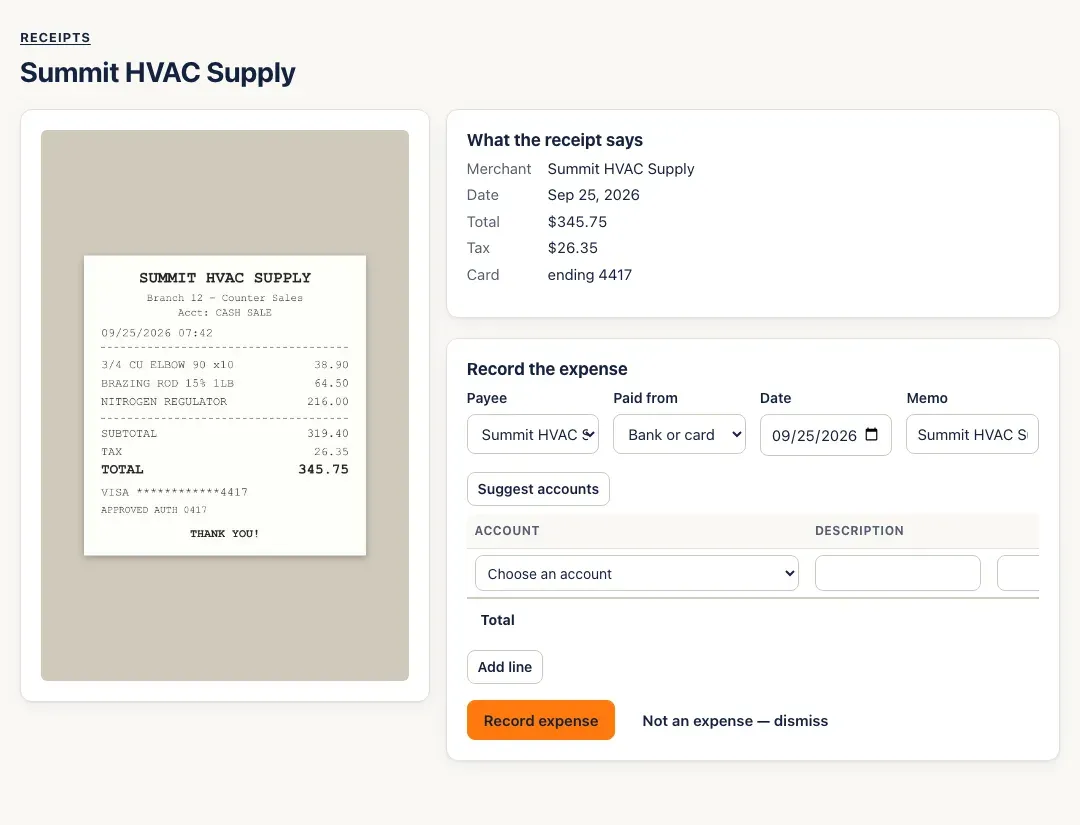
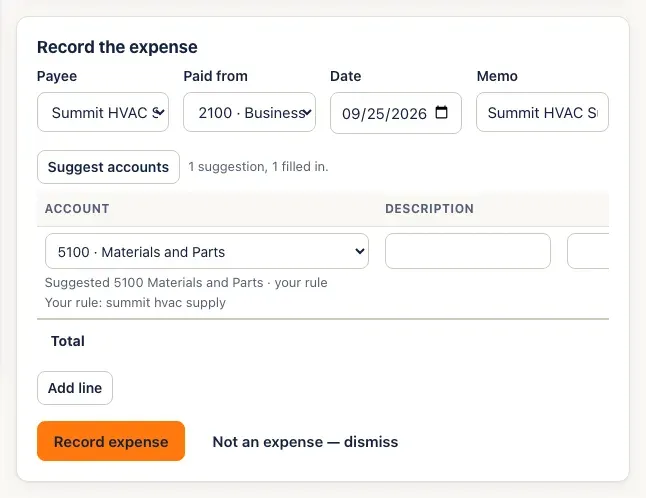
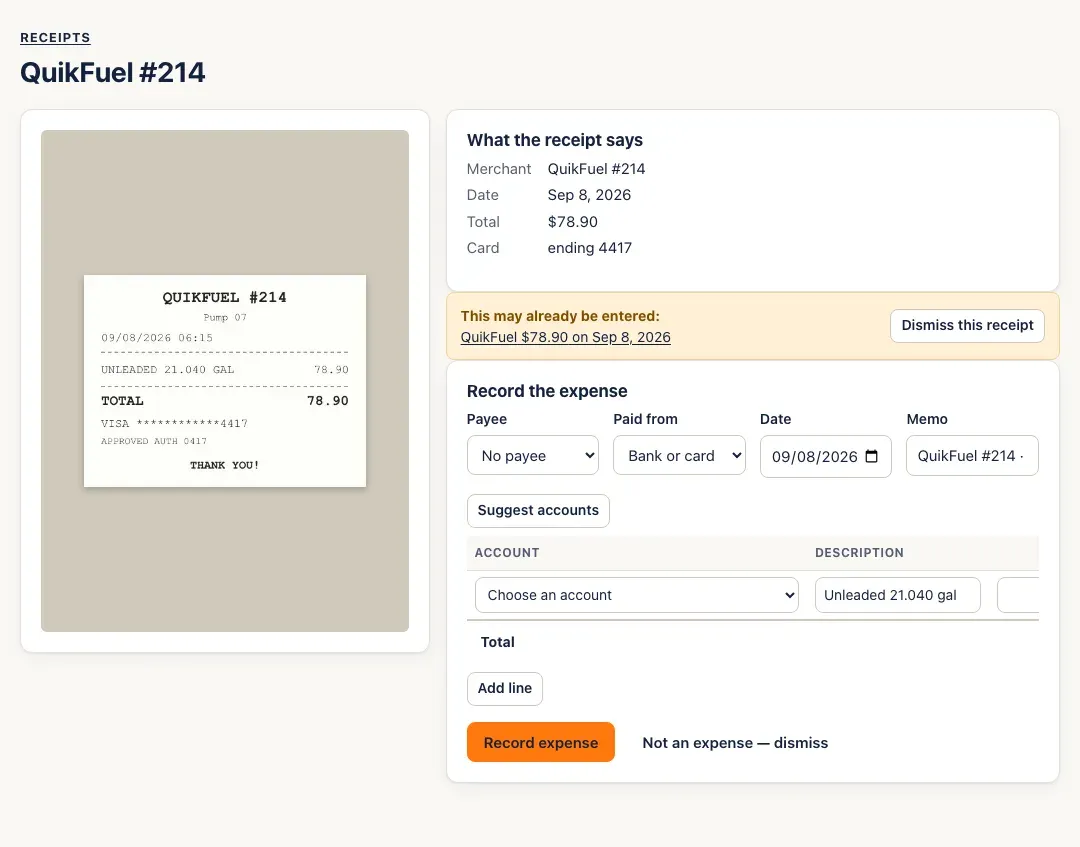
Open a receipt that’s been read. What the receipt says shows the merchant, date, total, tax and the card’s last four digits, beside the photo. Below it, Record the expense is already filled in from the receipt: the payee (when the store matches one of your vendors), the date, a memo, and the total as the amount.
-
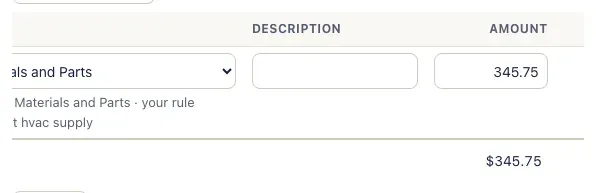
Choose Paid from (the bank or card it was paid with) and the Account — or click Suggest accounts. Check the amount: the line is wider than the form, so scroll it sideways to see Amount.
-
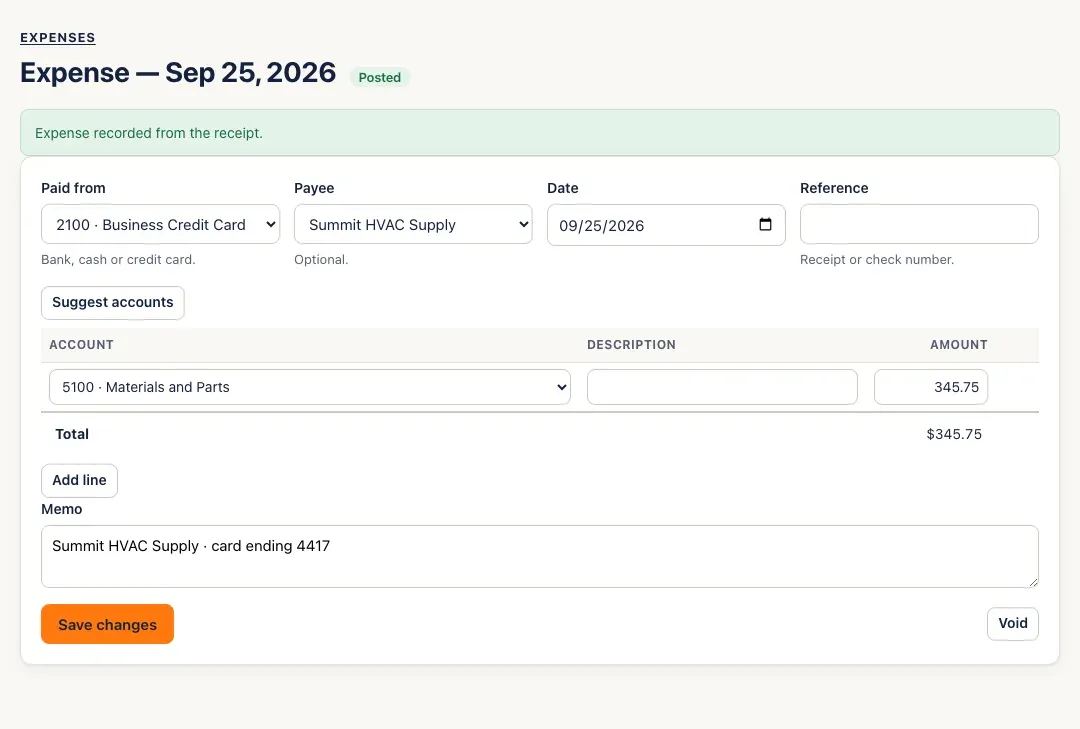
Click Record expense. SturdyBooks opens the new expense — Expense recorded from the receipt. — and the receipt moves to the Recorded tab.
-
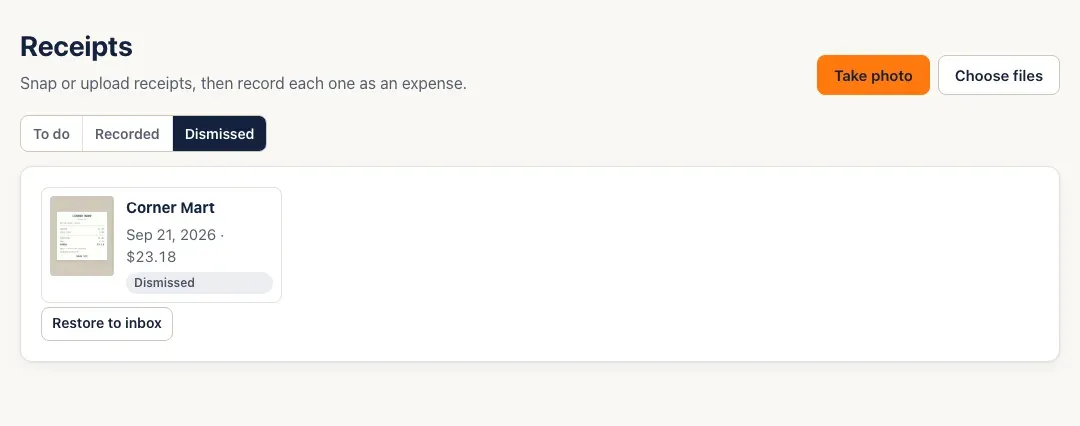
Not a business expense? Click Not an expense — dismiss. The receipt moves to Dismissed, where Restore to inbox brings it back.
You’ll know it worked when…
Section titled “You’ll know it worked when…”The receipt is on the Recorded tab, and the expense is in Expenses with the receipt’s amount.
Notes & limits
Section titled “Notes & limits”- This may already be entered. If an expense with the same total, dated within three days, is already in your books without a receipt, the receipt warns you and links to it. If it’s the same purchase, click Dismiss this receipt instead of recording it twice.
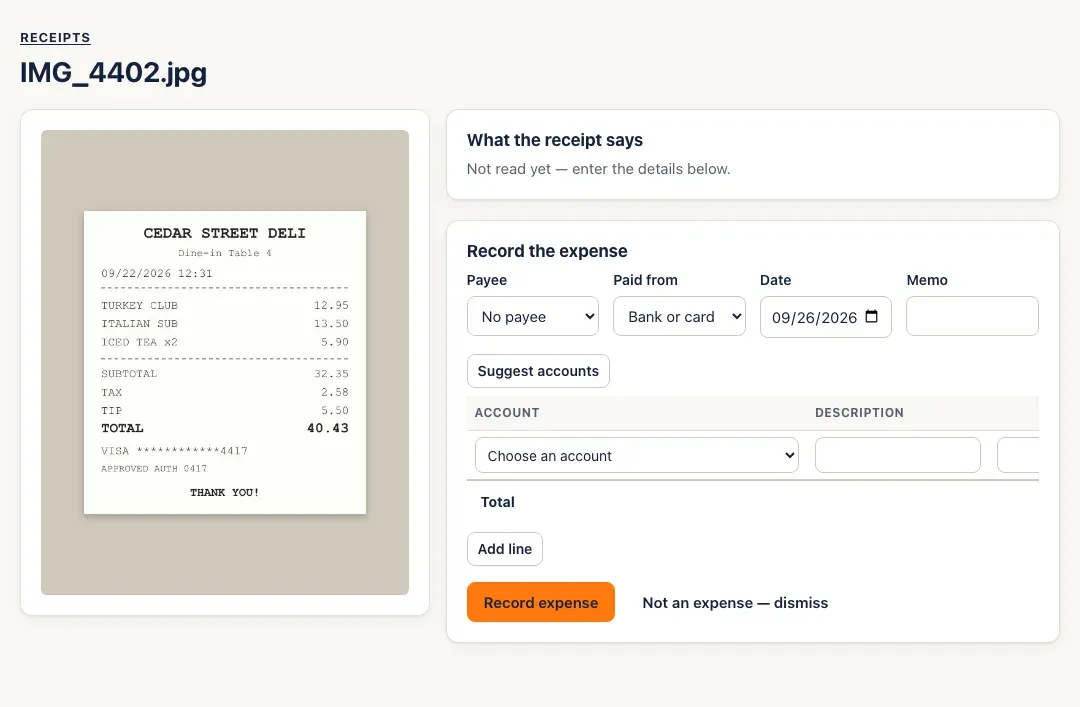
- AI reading off. If AI reading isn’t on for your company, receipts stay Not read — the form says Not read yet — enter the details below. Type in the payee, date and amount from the photo.
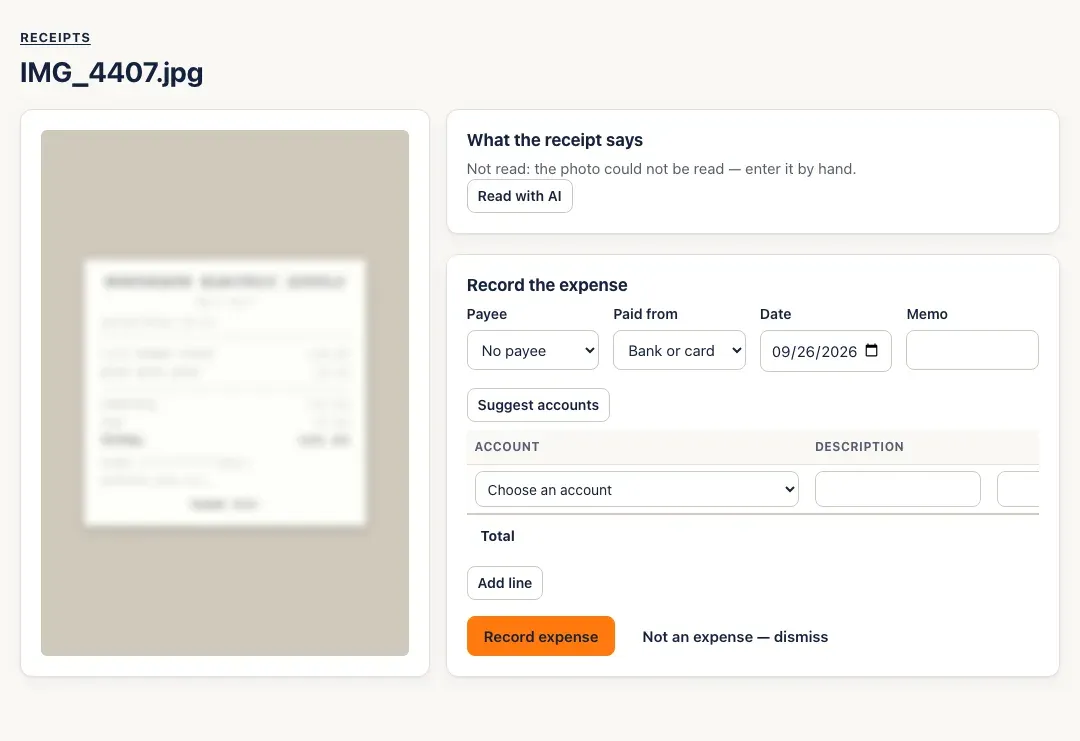
- Couldn’t read. If the AI couldn’t make out the photo, the receipt says so. Type the details in from the photo, or click Read with AI to try again (a receipt can be read five times at most).
- If reading takes a long time, the receipt says Still reading — this is taking longer than usual with a Check again button.
- The payee on a receipt is chosen from your vendors. If the store isn’t one yet, add it in Customers & vendors, or record the expense with no payee.
- Receipt photos are private to your company and kept with the receipt. See Privacy & AI for what the AI sees.