Invite your team & set roles
Who it’s for: Owners and admins (only an owner can invite another owner or change an owner’s seat) Where: Team (second row of the top bar) Before you start: The person’s email address. They’ll also need a Sturdy ID account with SturdyBooks access.
Everyone who works in your books has a seat with a role. You invite people with a one-time link that you send them yourself.
-
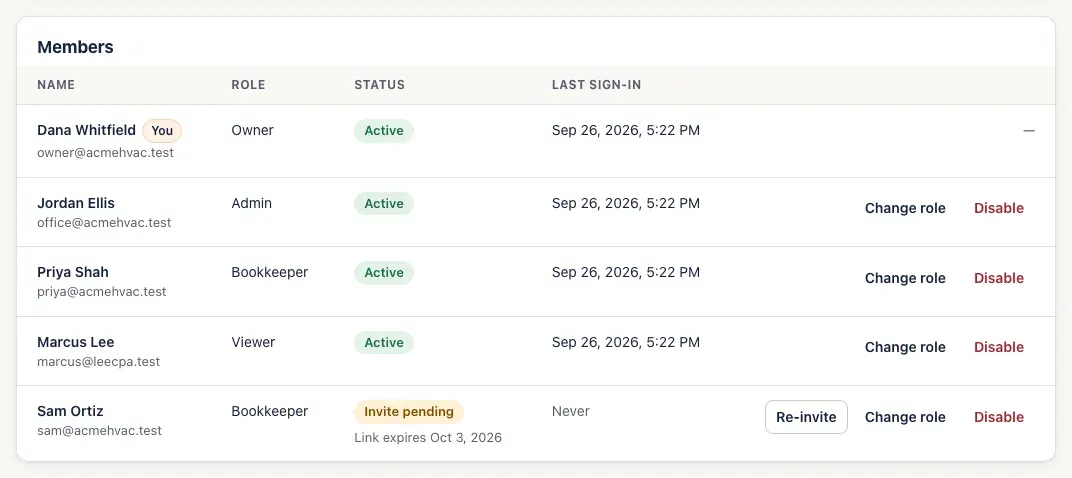
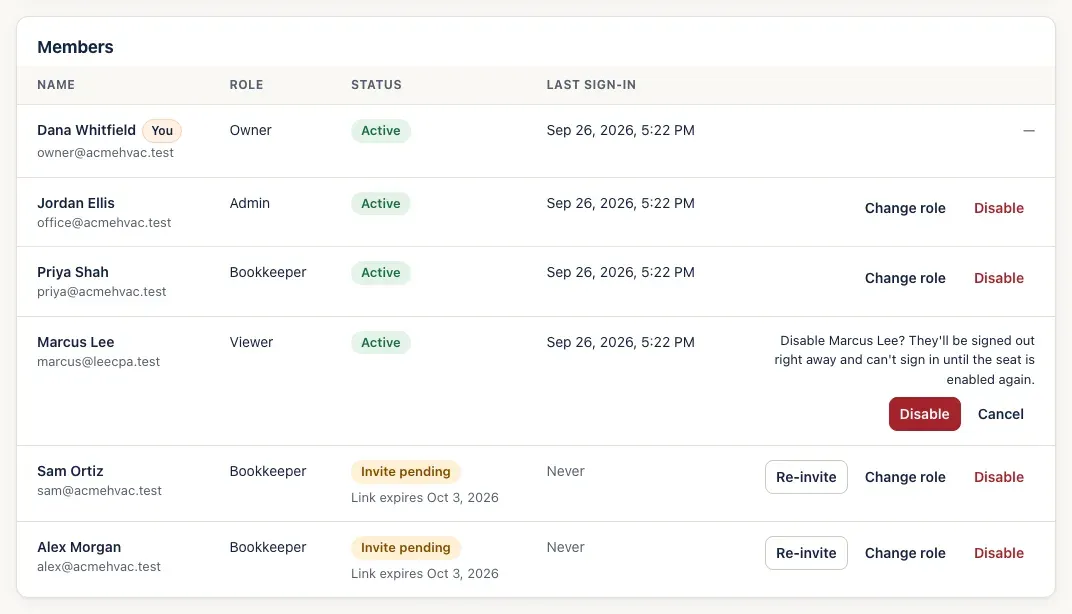
Open Team. Members lists everyone with a seat: their name and email, role, status and last sign-in.
-
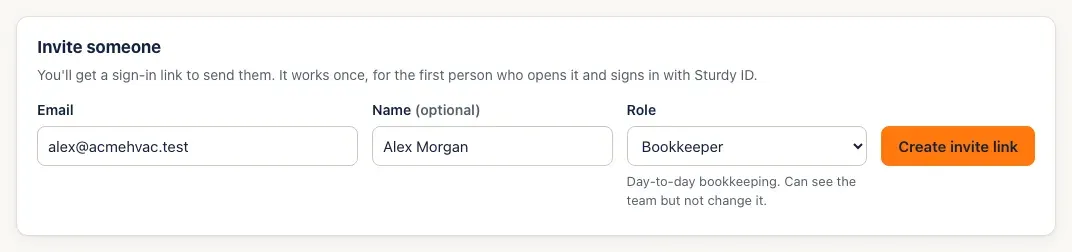
Under Invite someone, enter their Email, a Name (optional) and choose a Role. The line under the role says what it can do:
- Owner — everything, including adding and removing other owners.
- Admin — everything except managing owners.
- Bookkeeper — day-to-day bookkeeping. Can see the team but not change it.
- Viewer — read-only access to the books.
-
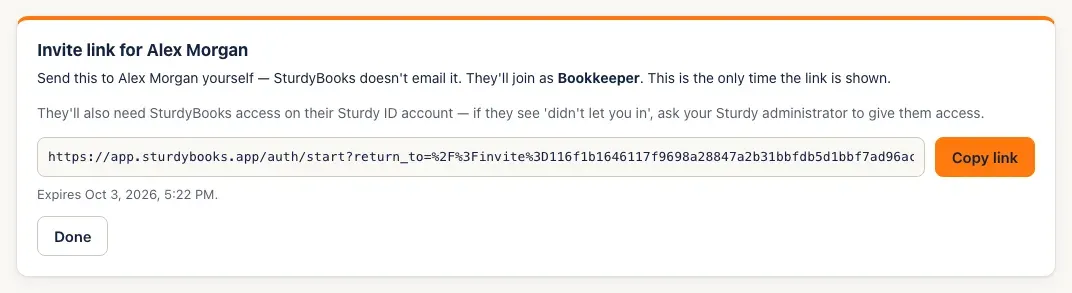
Click Create invite link. SturdyBooks shows the link — this is the only time it’s shown. Click Copy link and send it to them yourself, by text or email: SturdyBooks doesn’t email it. Then click Done.
-
They open the link, sign in with Sturdy ID and click Accept (see Accept an invite). Until then their row says Invite pending, with the date the link expires.
-
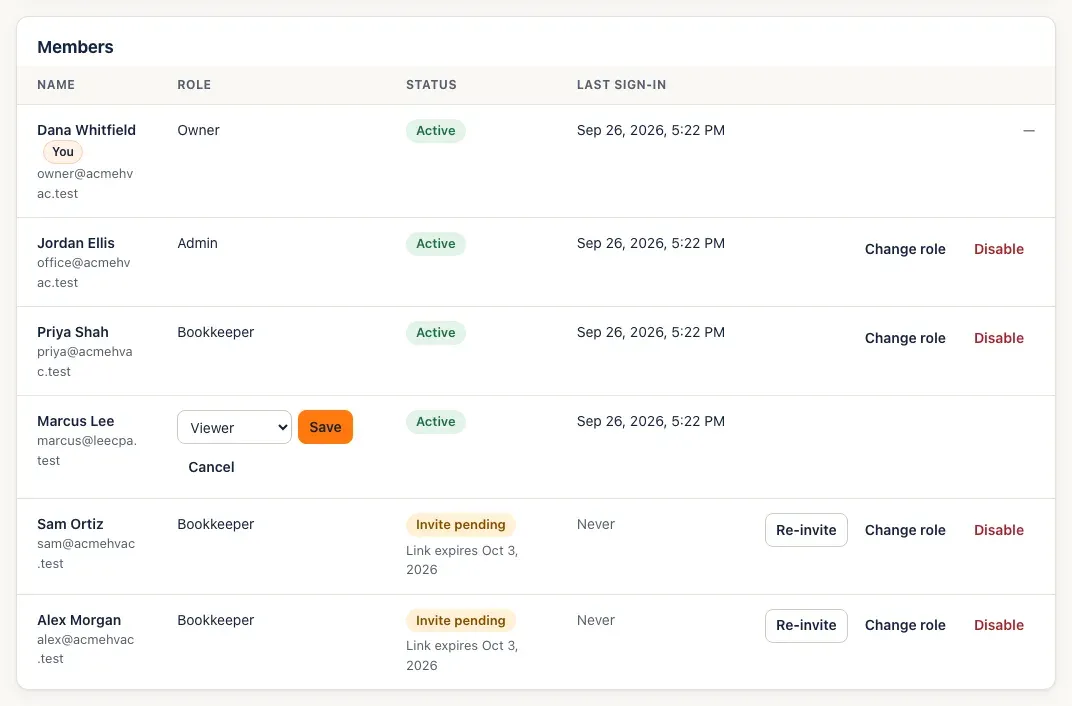
To change someone’s role, click Change role on their row, choose the new role and click Save.
-
To stop someone signing in, click Disable on their row and confirm with Disable. They’re signed out right away. Click Enable on their row to let them back in.
You’ll know it worked when…
Section titled “You’ll know it worked when…”The new person’s row shows Active and a last sign-in time. A role change shows a green message, for example Marcus Lee is now Bookkeeper.
Notes & limits
Section titled “Notes & limits”- An invite link works once, for the first person who opens it and signs in with Sturdy ID, and it expires after 7 days. If it expires or gets lost, click Re-invite on their row for a new link — the old one stops working.
- The statuses on a row are Active; Invite pending (with the link’s expiry date, or Link expired — re-invite); Access revoked (needs a new invite to sign in — use Re-invite); and Disabled (can’t sign in until you click Enable).
- There’s no way to delete a seat. Disable it instead — the person’s name stays on everything they did.
- You can’t change your own role or disable yourself, and a company always needs at least one active owner. Make someone else an owner first.
- Only an owner can invite an owner, or change, disable or re-invite an owner’s seat. Admins don’t see those buttons on owner rows.
- An email that already has a seat can’t be invited again — use Re-invite on their row.
- If the person sees Sturdy ID didn’t let you into SturdyBooks, their Sturdy ID account needs SturdyBooks access. Ask your Sturdy administrator.
- For exactly what each role can do, see Roles & permissions.